Thursday, 14 March 2019

Light bulb update

Here's an update on my last post for Y13 Physics class about SHM teaching - what I planned to try to get the students to understand better.

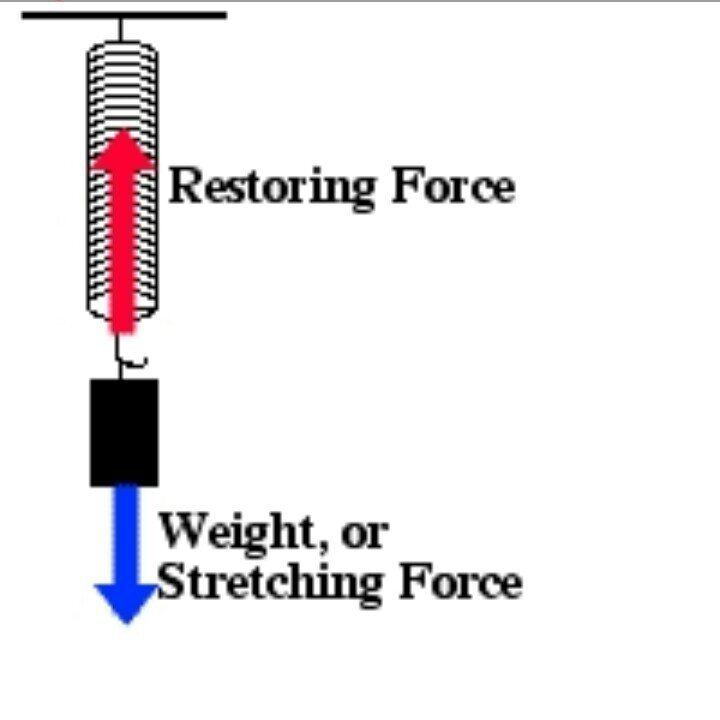
The restoring force was fairly easy to comprehend and helped them understand, so they now know that the force will always oppose any motion away from the equilibrium. The suggestion from Maria (Thanks πŸ™‚) reminded me of a very useful tool and we now have it saved as a bookmark for regular use in all topics.

Working on Phasors now.

Friday, 8 March 2019

Y 11 Practical activities - some thoughts and concerns.

The class is getting bigger and is at 30 students now. Getting a practical activity done with this group seems to be a challenge. We do not want any health & safety hazards when we are working with chemicals.

It does not get easier after the lunch break and so I should keep the practical activities to the morning lessons.  Some of the students turn up late after lunch and the  groups have to be reorganised according to the change in numbers.
What I am planning to do is:

  • have a fixed number in each group
  • have gear organised for a certain number of groups
  • do a practice run with the experiment before introducing any strong chemicals.
Will try and get a practical activity in the next week and see how it goes. 

Wednesday, 6 March 2019

Light bulb idea

Today in the Y13 Physics class we were discussing Simple Harmonic Motion and I was explaining to the group about the direction of force and how it is always opposing the motion. There were too many variables: distance from equilibrium, direction of motion, velocity etc. This proved very confusing and some students got it but a few were still confused when asked the same questions using different scenarios. It was getting exhausting for them trying to understand, and me to explain. This was stuck in my head - I neeed to get them to understand this...but how....


Thinking about it now - I feel that if I had used the term "restoring force" that would make it easier to understand/explain. This is because by definition restoring means bring back, replace, etc.  People learn in different ways. Will see how we go in the next class, but seems like this should definitely work.


Tuesday, 28 August 2018

Technology in the future

"All this technology is making us antisocial"

At first glance it looks like we are becoming less social as we are glued to our devices - whether they are laptops, tablets, mobile phones or other smaller wearable devices'
   

However I disagree with the premise that we are becoming antisocial due to this technology.
Why?
By definition "social"means 'relating to society or its organisation'.  We are actually able to keep in touch MORE than was possible ever before. It is easier to get in touch and stay in touch anytime anywhere. And that makes us more social not less; neither does it make us antisocial.


Tuesday, 13 March 2018

PD - Help with our Inquiry

Today we had an after school PD session, and the main purpose of this session was to help us with our Inquiry.

While many different formats were discussed I really liked the "visual" one promoted by another visual person. It looks like this


Another tool I would like to use is the labels. This will help me organise all the relevant blog posts together. Some suggestions are :


Should be able to formalise my inquiry soon now that I have some useful tools in place.  

Friday, 22 September 2017

Google for Education Certification Exam Level 1 (Week 9)

Today was the big day. All our learning and creating and sharing was being assessed, and at the end of it we were expected to get a Level 1 badge. However I cannot show you what it looks like because
of this:
The excuses are:

  • umm...
  • it was...
No not really - I just needed more time. It took me longer than usual to get started. The questions were not too hard, I might say some were easy and I really enjoyed it. Perhaps I took too long enjoying the exam and eventually ran out of time. I got 20 multiple choice Q's and 11 scenarios and am guessing that the others got something similar. When the timer alert was on the "last 10 minutes" I still had 5 scenarios to work through. That alert sort of "woke me" up and the tasks were done faster. Clearly not fast enough as I was working on scenario 9/11 when the exam self terminated since it was 3 hours since I started. It does not help to note that only one person in the group got through today.

Note to self - 
  • Google "Hangouts" and "Meet" are different and not interchangeable. 
  • Youtube "watch later"  and "playlist" are also different.
What next: we have to wait 14 days to repeat the attempt so I will register some time after a week so that we can give it another go. 

Friday, 15 September 2017

Sites Review Wk 8

This week we have had exams at school, and still going on - the next one starting in about 20 mins at 9 am. At the DFI we are reviewing our sites today. I shared my sites on chrome cast, starting with the one I made in 2011 and have been using it till the end of 2016. The new site is not as full but is much easier to navigate - I could see that myself even before we got some feedback. For the current site I got some ideas and some feedback: Instead of linking the year plan google doc, I could embed that in my site, ditto for the show me,  explain everything or other (A physicist shoots himself to prove a point ) videos of the various calculations etc.


We are preparing for the google level 1 test and the skills required for that are the ones we use everyday. Use the school account to register, more details here. Register at least 48 hours before so that the login details are sent in time. Have multiple devices to switch between screens, and use an incognito window. If you need to practice then there's help available here.

Working on "new" sites is so much easier than the classic sites. Of course the flip side is the limitations you have in terms of what pre determined options are available.
 
Here's the landing page for all my important sites, created using the new sites. What I did was just take screenshots of the individual sites/blog etc and converted these to buttons and added the links.
Plan is to link the sites of everyone in the DFI group.
Embedding is a breeze on the new sites. We can embed docs, maps, you tube videos, or videos from the drive. The docs are live and no one can edit these online. A new utility which was released last night is embed url; this is still in the initial stages so not yet fully functional.

Here is the link of my new site. 
With this done I believe that I am almost ready for the Google Certified Educator Level 1 Exam :-) 


Saturday, 9 September 2017

Sites Wk 7

Today's session was about websites and I was sure this was going to be a slow & boring day. I designed/made my first website almost 2 decades back in 1998 and therefore I know everything about sites. Wait a minute - I sound just like my students!

And how wrong this notion was. I now know, not just how much I did not know but also how to find what I want to know...

Back to the morning - we first shared ideas about what a good site should have ( well organised, links on the landing page etc) and NOT have (too busy, monotonous, busy, access denied etc). If you cannot fit all your important links on the landing page in the screen - gamify a treasure hunt to find stuff on your site. A google form could help in that.

We learnt about Google keep and I really liked the text grab feature - very useful. This could also be used to create soft copies of student's paper work (exams/ diagrams etc) and save as a multi page doc in the absence of a scanner.
Here's a screenshot of the work done on the new site - Standards for the Teaching Profession


Friday, 1 September 2017

STP's and Image mapping for sites: Week 6

As is the case every week, we learnt a lot of things in today's session. The best one for me was image mapping - I had seen this being used on a few sites but was not sure what it is called or how it was done. But having done it I can say with confidence that is is fairly straight forward. You just have to follow the logical steps, If you try to change the order it wont let you; and of course the feature wont work.

Here's a screenshot of my home page with an image of the 6 Standards of Teaching Profession. The area on the picture allocated to each standard acts as a link to a new page which has more details for THAT standard. To go to the page for standard 3, you click anywhere in the area of "Professional Relationships"on the image and this takes you there. Its that simple!


Getting this effect is not too hard either.

Step 1 - Map the image with (x,y) coordinates using pixlr as below. Notice the "plus" at the top left corner of the gold biscuit picture - the coordinates of the point are displayed at the top right corner of the screen. By moving the plus around the boundary we can get the coordinates for the entire boundary. Be aware that the boundaries should not overlap - potential problems!!


Step 2 - Enter the coordinates of the boundary and the corresponding url into the code (HTML)


For example: <map name="map1">
<area coords="162,58,254,15,333,4,440,16,533,56,422,225,346,207,272,225" href="https://sites.google.com/a/tamaki.ac.nz/mh-stp/home/stp-1" shape="poly">

<area coords="534,62,425,229,471,281,484,343,688,344,676,251,647,181,606,125" href="https://sites.google.com/a/tamaki.ac.nz/mh-stp/home/stp-2" shape="poly">
<area coords="688,351,485,347,473,409,417,467,518,642,590,590,655,497,680,428" href="https://sites.google.com/a/tamaki.ac.nz/mh-stp/home/stp-3" shape="poly">
</map>

Step 3 - SAVE, ofcourse you want to check that it looks fine and also that it actually works. That's it - done! finito!!

Wednesday, 23 August 2017

Working with sites, blogs - DFI - Wk 5.

Cross curricular topic site collaboration.
We were tasked to make a site based on the story of the Lion and the mouse. There were 3 groups who worked on a specific range of year levels, the highest being Y7 to 9. We used this padlet to collect the ideas from the team.

We also made a one page site. Since I do not teach year 9's I just made one which includes what we learnt but will not yet be used this year. Some of the links are not live. I used a video of my Y11 Physics class on the site. This is something I intend to do on my class sites...

Finally we learnt to network by linking our blogs "link love". This can be used in a class situation to ensure all (or most) blogs are read by a wider audience. Here's what mine looks like after this gadget "Blog list" has been added.

Need to practice so that I can recollect all this when needed...:-)

Saturday, 19 August 2017

Digital Fluency Intensive - Week 4. Cyber Smart, Explain everything video, screen castify

Explain everything video is something I have not used even though I have used Explain everything in project form for senior Physics classes. Here's an example of how it is used in junior classes.


And here is another one of how I intend to use it in my Year 11 Physics class: topic for this is waves and students are learning how to solve some numerical problems from past exam papers.

Here is an example of the screen castify video. We can cast multiple screens (entire desktop) or just the tab if we need only that tab. We also have an option to cast our video in a corner if the device has a camera and if we need to show an object. Here's my brief video on how to comment on a blog post.

Friday, 11 August 2017

Digital Fluency Intensive - Week 3. Email Calendar Hangouts.

Today we had an interesting session learning about the details of gmail and calendar. This was - get into the settings and try various combinations - some of which change the GUI, some affect the functionality and usability. The idea was to make these tools more efficient and more "attractive".
Here's an example of a hangout video chat along with screen capture. We picked a student's post at random and discussed their learning from the pak-n-save trip.


Some cool tips for gmail are:

  • If we happen to accidentally hit send on an email [guilty as charged :-) ] then depending on the situation a certain level of panic will set it. Did you send it to the wrong Nicki? Did you send confidential docs to ..... Well not anymore! You can setup a "time bomb" arrangement. This gives you upto 30 seconds to UNDO - phew!
  • You can arrange for your inbox to have all the unread (or any other criteria) emails displayed at the top.
  • Spam control - you can hover the cursor above a name and delete ALL the emails from that address. 
  • Gmails can be labelled like blogs
  • Filters can be setup with yor criteria so you get to what you are looking for quickly
  • and finally yes you can translate an email by selecting the language in the dropdown menu from the arrow next to the reply arrow.
Calendar:
  1. we can change the view - not just day/week/ month but we can select the number of days
  2. we can also choose to hide morning and evening engagements - if you are like me and keep your personal and professional lives totally separate
  3. calendar apps are available for iphones/ androids
Hangouts was fun because we were told to have only ONE mic active, all the others on MUTE. If there was more than one mic we would get a lot of feedback. And in about 5 minutes there was a LOT of feedback. Most of us missed to mute our mics after our turn and.......

Now the challenge for me is to have the time to use some of this in the classroom for us all to be able to Learn Create Share. The journey continues...

Wednesday, 2 August 2017

Vector Class Trip - Week 2

This week is Engineering week and FutureInTech is working with the schools to promote "Engineering as a career option" for today's students. Today 2nd August we got an opportunity to visit the local Vector power substation on West Tamaki Road. The invite was for 18 students and 2 teachers and we choose to take our Y11 Physicists. We got ready to leave the school and a phone call informed us that hte trip would have to be cancelled due to an incident at the station. The class was disappointed but we went to plan B. And within minutes we got another call that they had fixed the hazard and could host us - Yay !:-)
One school van was available to us and SD offered to drive us in two groups. Once we got there we were all given PSE (personal safety gear - hardhat, safety glasses, hi-viz vests).
Once we were all "kitted" and briefed on the safety precautions, we went inside.

The first thing we saw was a large battery stack pictured here. There are 12 stacks in a groups, two groups making a total of 24 stacks. Each of these stacks has 16 "power packs" which store 800 KW of energy. These are similar to the AA cells we use in our devices - just bigger. The entire storage capacity in here is able to power all the houses in Glen Innes for upto 3 hours in case of a power outage.

A lot of heat is generated in this part and the temperature need to be controlled. Notice the door of the stack has a cooling system filled with a green liquid, this is similar to the one used to cool car engines and serves the same purpose here.
The DC power is converted to AC power using an invertor (indoors) and then the voltage is changed from 400 Volts to 11,000 volts using a transformer (outdoors) pictured here.
                        

This is then sent to consumers for use.
The students enjoyed the learning experience as it brought real life experience into their learning. Thank you Vector!

Friday, 28 July 2017

Digital Fluency Intensive - Week 1 Term 3. The basics...

Yay its Friday! We had 11 teachers from Schools around Auckland come together and start a journey. Todays "to-do list" included things like Google Chrome, Drive, Docs, Save and Blogger.

Google Save is something of a boon for people using drive - it helps add tags to whatever we save. This makes looking for the docs much more easier - here's how. When we use multiple tags, e.g. topic, NZQA standard, student's name etc we can find files with any parameter since each tag works as a search parameter. This is similar to blogs in a way.

We learnt some word processing shortcuts & tricks. For instance using (Ctrl+shift+V) instead of (Ctrl+V) helps us paste using the current documents format rather than the format from the source document. This saves valuable time & effort when tidying up the current document specially if you are copying from many documents and/or websites.

Voice recording to share a story was a good activity. Now I can leave the keyboard aside when typiong long documents/reports πŸ‘. Adding headings and sub headings and "Table of Contents" was my favourite. This is really useful for navigating long docs. It is similar to adding bookmarks - but in bulk.

We also learnt how to find and use addons.  Mind Meister for mind mapping, WebSequenceDiagrams & Lucid Charts for flow charts and/or circuit diagrams etc.

And finally we made a poster in Google Docs: Not using draw, but tables to organise images etc. The font used is "Raleway". Found some images of our Y13's senior students when they were not taller than us :-)
  

Wednesday, 1 March 2017

Manaiakalani PD day March

Today's session is quite different from the previous ones. We are part of Manaiakalani which is a large "Community of Learning". All the schools in the cluster are working in the same direction in slightly different ways - which are tailored for their students.

Use of Woolf Fisher Research data shared by Aaron is put to good use by all of "us" to plan for this year and the near future. That presentation by each school is quite interesting - different strategies employed by different schools across the cluster.

Sharing PAT data with students (with due explanation /interpretation) can help motivate them. "I thought I got a pass but..." Screenshot and share?

Accelerated reading - do we have the data to compare "before" and "after" to show what is working and what is not.

"Never delete a teacher from Google if they leave the school" We have unlimiteed memory and the resources are usually reusable.

Critical Literacy - using language that is not biased towards any "side" so that students are encouraged to think about the topic and take sides.

Tuesday, 28 February 2017

Insert a 360 video from you tube

open video - share - embed - control C - paste in html tab at the bottom - see video.


Swivel tablet to see 360 degree.

Insert you tube

Open video - share - embed - copy the link using control C = paste on post (in html tab) to see it.


Success!

Last week


A dinosaur at blogging, but I am trying :-). Trying to insert an image.
Last week has been challenging at school with a team member leaving and senior classes in need of someone to handle their assessments. I took over one senior class which lwaves me little time for other routine jobs. I could say I am struggling with some of my deadlines. It is short term (hopefully) and will get better soon.


Thursday, 16 February 2017

The beginning

I am getting started with blogging. The plan is to gather thoughts & ideas, share and revisit these at a later date to see what worked 😊and what didnt πŸ’₯